> ## Documentation Index
> Fetch the complete documentation index at: https://helium-promptless-document-entitlement-management-features.mintlify.site/llms.txt
> Use this file to discover all available pages before exploring further.
# Quickstart
> Get set up with a Helium paywall and incorporate it into your app
This quickstart shows you how to set up, preview, and go live with an AI-editable Helium paywall in your app.
## Create your account on Helium
Create your Helium account at [app.tryhelium.com](https://app.tryhelium.com).
This will take you to the *Dashboard*, where you can create paywalls, manage api keys and integrations, run a/b tests, view analytics, and more.
## Connect your products from the app store
Lets start by importing products from the app store.
1. Go to [app.tryhelium.com/products](**Products**)
2. Click **Connect App Store**
3. Enter your App Store Connect credentials
4. Click **Connect**
You can find your app store connect credentials by going to your [app store connect page](https://appstoreconnect.apple.com), logging in
with your apple ID ans selecting your app, selecting
**Users and Access**, and clicking **App Store Connect API**
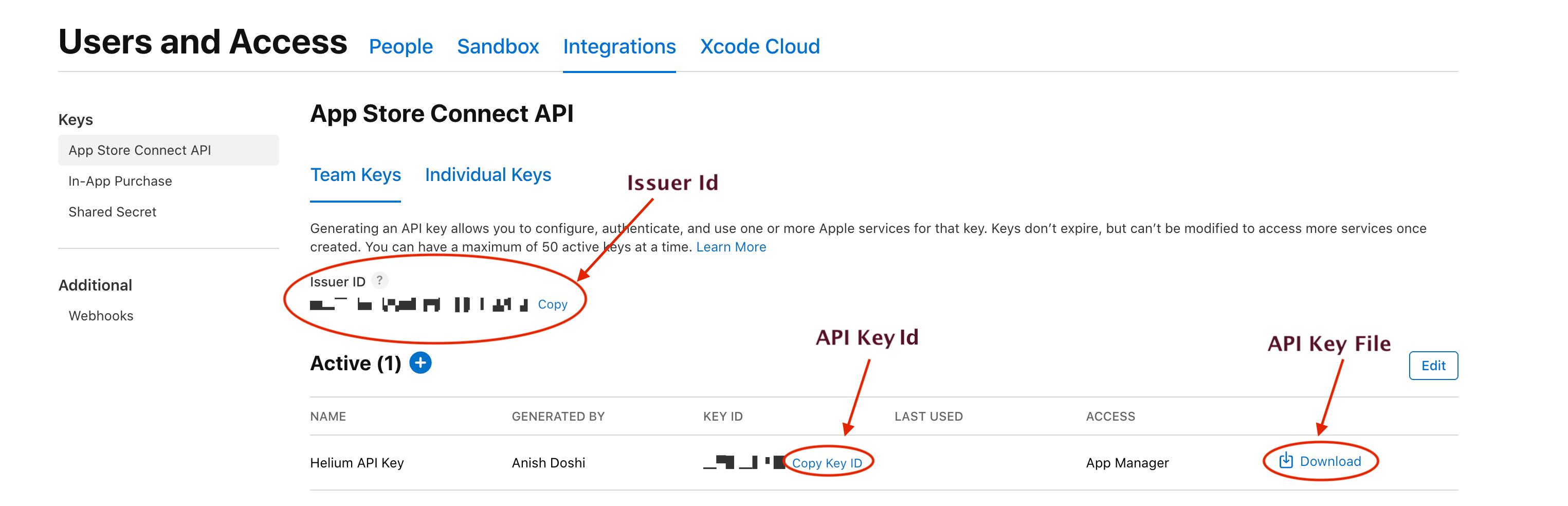 After syncing, your products will now be available to use in any paywall you create. Press **Refresh Products**
any time on your [integrations page](https://app.tryhelium.com/integrations) to resync products on product/price/offer changes.
Do this step even if you're using RevenueCat, your products will still be in Apple app store. Direct RevenueCat and Google Play import coming soon!
## Create a new paywall
Time to create your first paywall with Helium!
1. Click on the **Paywalls** tab in the sidebar (or go [here](https://app.tryhelium.com/paywalls)).
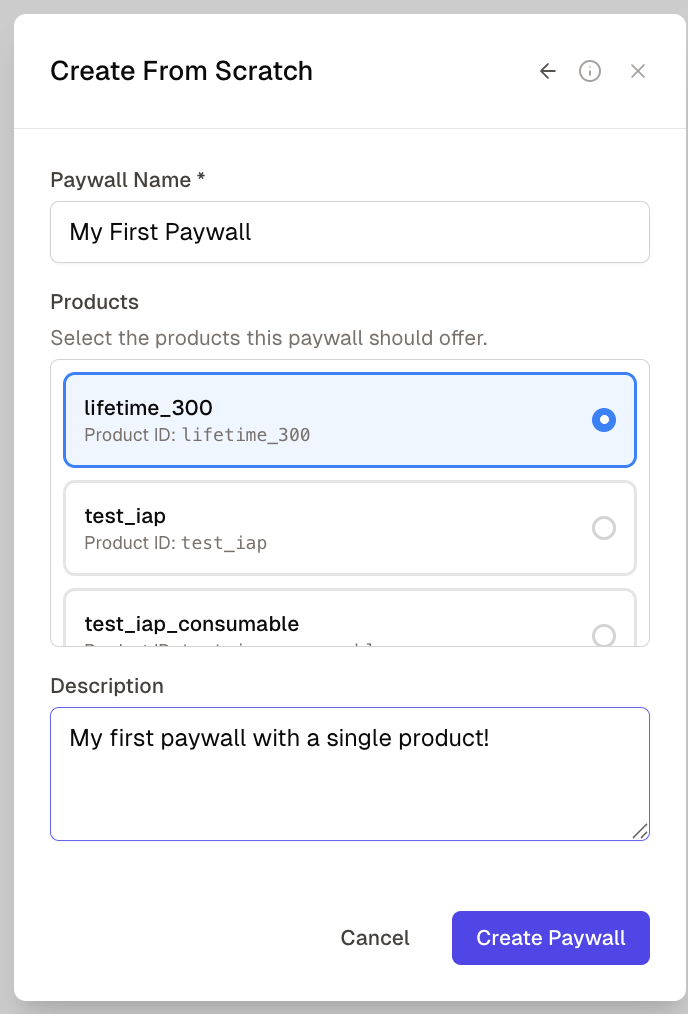
2. Click **Create New Paywall**. You can create a paywall
* From a screenshot of an existing paywall (recommended)
* From a Helium template
* From a Figma design link (make sure to make its visibility public!)
* From scratch
3. Give your paywall a name, description, and select a few products. (Don't worry if you're not sure which products to use - you can swap in/out products later and Helium will automatically
update your paywall.) Then, hit **Create Paywall**
After syncing, your products will now be available to use in any paywall you create. Press **Refresh Products**
any time on your [integrations page](https://app.tryhelium.com/integrations) to resync products on product/price/offer changes.
Do this step even if you're using RevenueCat, your products will still be in Apple app store. Direct RevenueCat and Google Play import coming soon!
## Create a new paywall
Time to create your first paywall with Helium!
1. Click on the **Paywalls** tab in the sidebar (or go [here](https://app.tryhelium.com/paywalls)).
2. Click **Create New Paywall**. You can create a paywall
* From a screenshot of an existing paywall (recommended)
* From a Helium template
* From a Figma design link (make sure to make its visibility public!)
* From scratch
3. Give your paywall a name, description, and select a few products. (Don't worry if you're not sure which products to use - you can swap in/out products later and Helium will automatically
update your paywall.) Then, hit **Create Paywall**
 ## Use the Helium editor to edit and customize your paywall
(Docs here coming soon!)
For now, just hit *Save* to save your paywall. You should then see a screenshot of your paywall
in the Paywalls tab. In the next section, we'll get it live.
## Wire up your paywall to a workflow/trigger
Helium uses several concepts that define what paywalls users see, and where in the app they'll be seen.
**Triggers** are placements within your app where you'd like to show a paywall. Trigger names should be lower cased and under\_scored,
because the SDK code will refer to these strings. **Important** - Make sure to be careful when deleting a trigger! It's usually safer to *not* delete
triggers in most cases, and just create new ones when needed.
You might have a `post_onboarding` paywall right after onboarding (we recommend this!), `settings_screen` for in-settings upgrade for high-intent users, or a `premium_feature_upsell`. Reach out to the
Helium team for a free app scan to give you recommendations for your app.
**Workflows** are *groups* of triggers that should point to the same paywall, or that share same targeting or experimentation setup.
Lets start with a simple workflow and trigger. Go to the **Workflows** tab in the lefthand sidebar, and click **New Workflow**. Select the
paywall you saved in the previous step.
## Use the Helium editor to edit and customize your paywall
(Docs here coming soon!)
For now, just hit *Save* to save your paywall. You should then see a screenshot of your paywall
in the Paywalls tab. In the next section, we'll get it live.
## Wire up your paywall to a workflow/trigger
Helium uses several concepts that define what paywalls users see, and where in the app they'll be seen.
**Triggers** are placements within your app where you'd like to show a paywall. Trigger names should be lower cased and under\_scored,
because the SDK code will refer to these strings. **Important** - Make sure to be careful when deleting a trigger! It's usually safer to *not* delete
triggers in most cases, and just create new ones when needed.
You might have a `post_onboarding` paywall right after onboarding (we recommend this!), `settings_screen` for in-settings upgrade for high-intent users, or a `premium_feature_upsell`. Reach out to the
Helium team for a free app scan to give you recommendations for your app.
**Workflows** are *groups* of triggers that should point to the same paywall, or that share same targeting or experimentation setup.
Lets start with a simple workflow and trigger. Go to the **Workflows** tab in the lefthand sidebar, and click **New Workflow**. Select the
paywall you saved in the previous step.
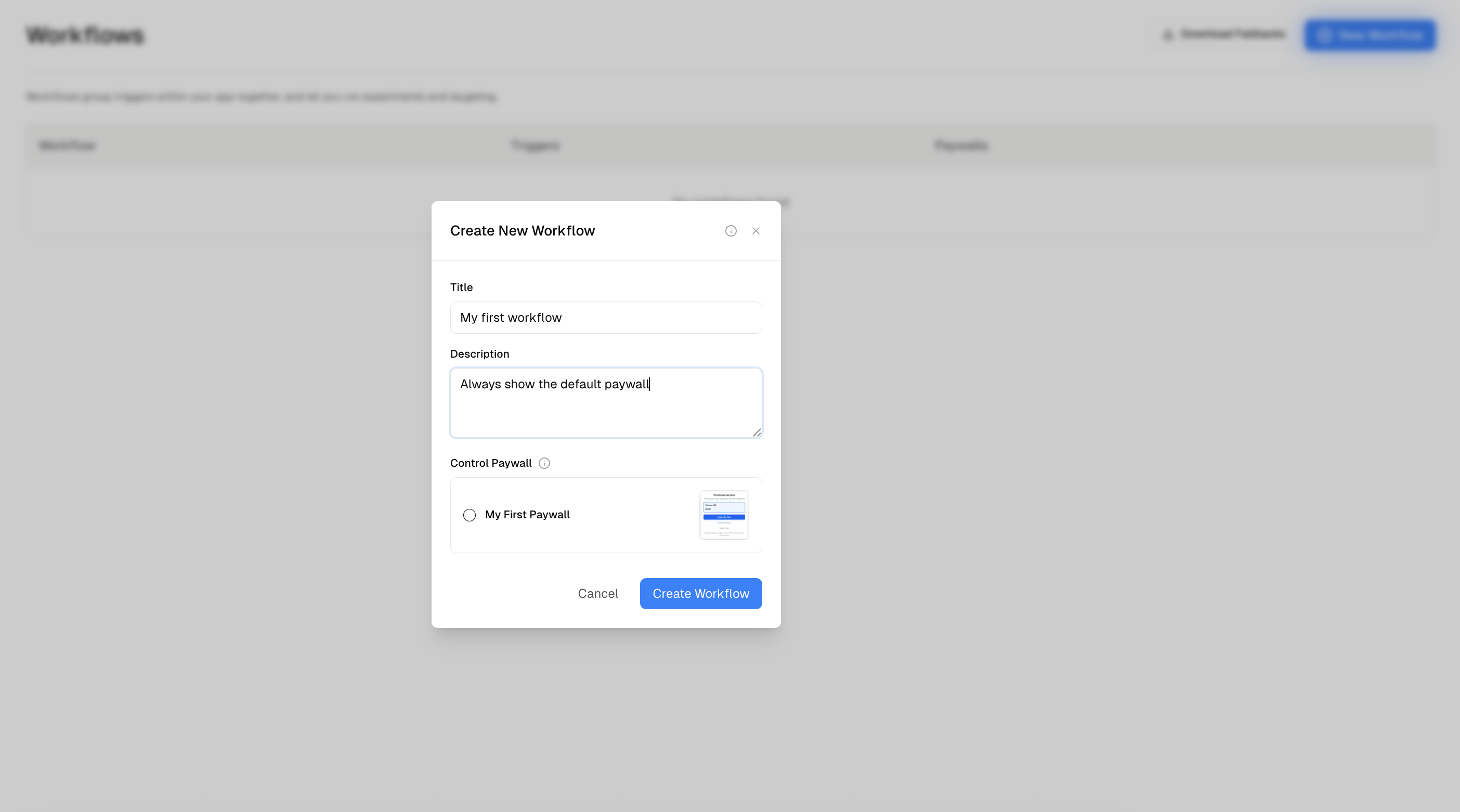 Click into the workflow, and then click **Add Triggers**. Give your trigger a name, e.g. `onboarding`:
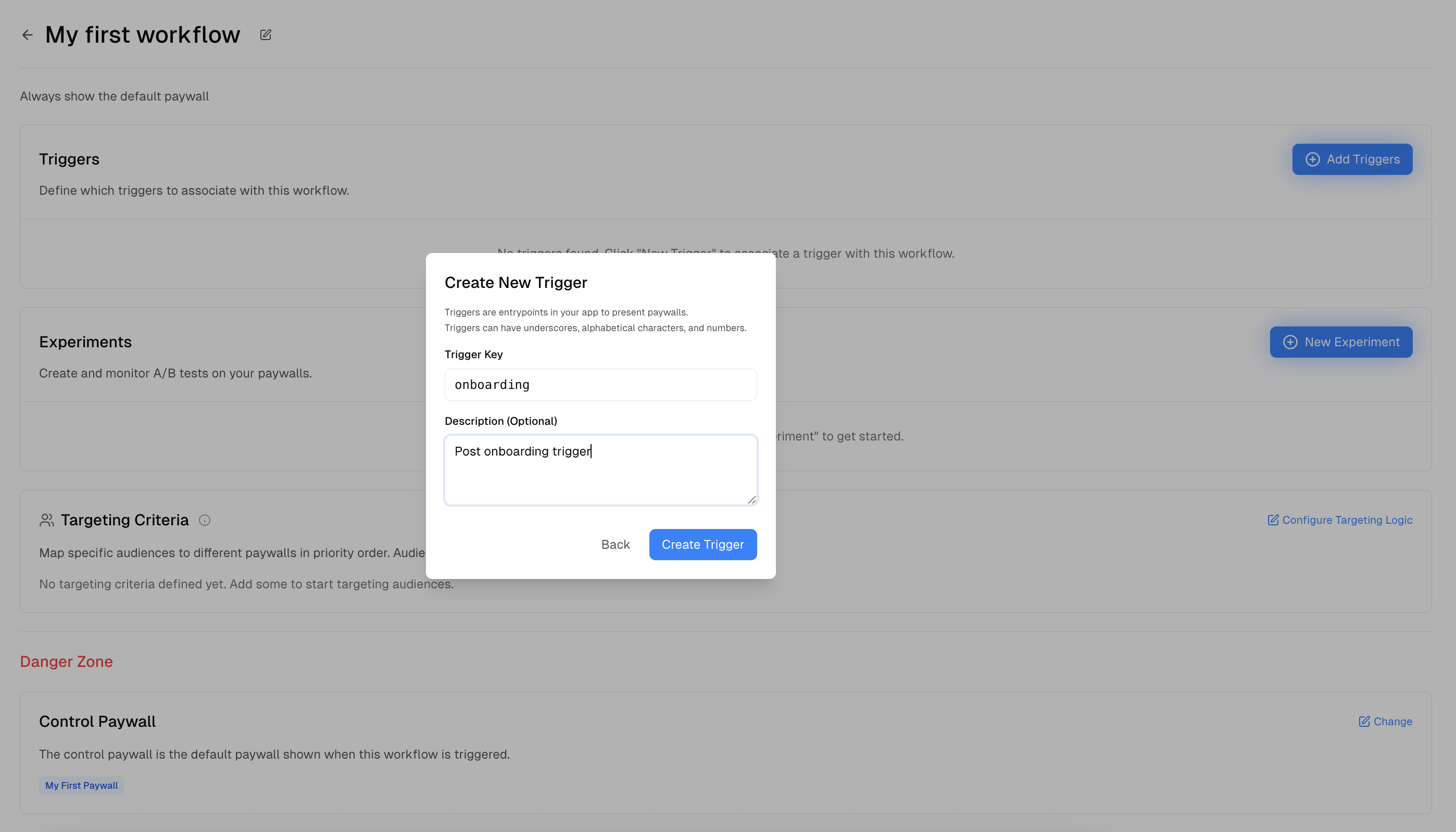 Then, click **Add 1 trigger**. Afterwards, if you click back out into **Workflows**, your workflows section should look like this:
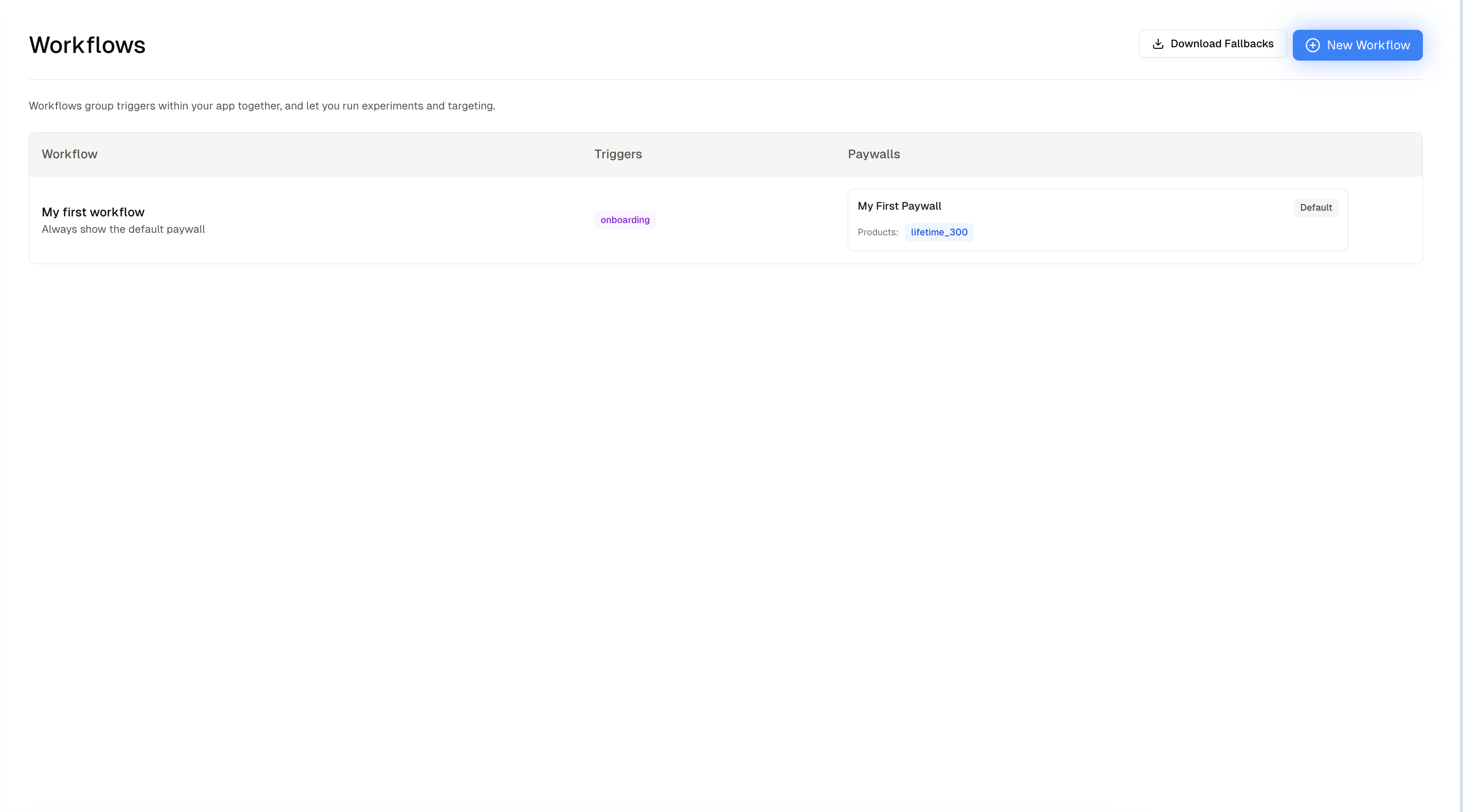 You now have a workflow + trigger registered with Helium! Lets set up the SDK and go live with your new paywall.
## Install and set up the SDK
First, have an API key handy. You can find yours by clicking on the **Account Settings** tab in the bottom left, and clicking
**Create New API Key**. Then, choose your mobile platform and follow the integration quickstart:
Swift/SwiftUI/UIKit
React Native/Expo
Flutter integration
## Set up revenue reporting so Helium can automatically optimize your revenue
Follow [our guide on revenue connection](https://docs.tryhelium.com/guides/revenue-reporting) to connect Helium
to revenue events via webhooks
Revenue reporting enables Helium to track conversion rates, optimize paywalls, and provide detailed analytics about your subscription performance.
## Set up fallbacks to guarantee 100% paywall uptime for your users
Follow [our guide on fallbacks](https://docs.tryhelium.com/guides/fallback-bundle) to guarantee that you'll have
100% uptime of your paywalls even if a user doesn't have network.
## Pre-launch and go live!
Before going live, here's a quick checklist. As always, reach out via your Helium slack channel or to [founders@tryhelium.com](mailto:founders@tryhelium.com) if you'd like any help with
testing.
### Testing Checklist
* [ ] Paywall created with products
* [ ] Workflow + trigger created
* [ ] SDK set up and paywall fetching wired up
* [ ] [Tested localized price display + in app purchases](https://docs.tryhelium.com/guides/sdk/storekit-testing)
🎉 **Congratulations!** You now have a live, AI-optimized paywall in your app. Monitor your dashboard for insights and let Helium's AI continuously optimize for better conversion.
You now have a workflow + trigger registered with Helium! Lets set up the SDK and go live with your new paywall.
## Install and set up the SDK
First, have an API key handy. You can find yours by clicking on the **Account Settings** tab in the bottom left, and clicking
**Create New API Key**. Then, choose your mobile platform and follow the integration quickstart:
Swift/SwiftUI/UIKit
React Native/Expo
Flutter integration
## Set up revenue reporting so Helium can automatically optimize your revenue
Follow [our guide on revenue connection](https://docs.tryhelium.com/guides/revenue-reporting) to connect Helium
to revenue events via webhooks
Revenue reporting enables Helium to track conversion rates, optimize paywalls, and provide detailed analytics about your subscription performance.
## Set up fallbacks to guarantee 100% paywall uptime for your users
Follow [our guide on fallbacks](https://docs.tryhelium.com/guides/fallback-bundle) to guarantee that you'll have
100% uptime of your paywalls even if a user doesn't have network.
## Pre-launch and go live!
Before going live, here's a quick checklist. As always, reach out via your Helium slack channel or to [founders@tryhelium.com](mailto:founders@tryhelium.com) if you'd like any help with
testing.
### Testing Checklist
* [ ] Paywall created with products
* [ ] Workflow + trigger created
* [ ] SDK set up and paywall fetching wired up
* [ ] [Tested localized price display + in app purchases](https://docs.tryhelium.com/guides/sdk/storekit-testing)
🎉 **Congratulations!** You now have a live, AI-optimized paywall in your app. Monitor your dashboard for insights and let Helium's AI continuously optimize for better conversion.